
Step-by-step guide to setting up Instagram auto replies via Meta Business Suite plus advanced keyword triggers, 10 copy-paste templates, and tool comparison for 2026.
.avif)
Automate Comments and DMs in 5 Minutes
Someone comments on your IG post. They get a DM instantly. You do nothing.

Trusted by 10K+ creators and SMBs


TL;DR
TL;DR
As Instagram grows in popularity for businesses and influencers, managing DMs efficiently has become essential. Quick responses are vital for maintaining customer satisfaction and engagement. With 80% of customers expecting a response to their DMs within 24 hours, the pressure to provide timely and effective replies is undeniable. In fact, a survey highlights that lead conversions increase by 391% when businesses respond within just one minute of an inquiry.
This is where auto replies on Instagram come into play.
In this article, we’ll guide you through setting up auto replies, editing them, and using additional tools to further optimize your Instagram messaging strategy.
Before diving into setup, it helps to understand what Instagram lets you do natively versus what requires a third-party tool. Most guides skip this and readers end up confused when they cannot find features that do not exist in the native settings.
Use native setup if: you want a simple acknowledgement message when someone first DMs you, or an away message during off-hours. This takes 5 minutes and costs nothing.
Use Inrō if: you want auto replies triggered by specific keywords, comments, or Story replies, or if you need different responses for different types of enquiries, want to track performance, or want replies that feel genuinely personalised rather than generic.
Most businesses and creators start with the native setup and add Inro once they realise the limitations. This guide covers both in order.
Auto replies are pre-set, automated responses sent to users who send direct messages to your Instagram account. When someone sends you a message, an autoreply is triggered, delivering a predefined response that can acknowledge their message, provide helpful information, or invite them to take further action.
These automated responses work by sending predefined text in response to a direct message, much like an out-of-office email. Auto replies are particularly useful for businesses or influencers who receive a high volume of DMs and need to ensure quick, real-time communication with their audience.
One of the most common examples of automated replies in Instagram Business accounts might be “Thank you for reaching out! We’ll be back to you within 24 hours”. However, there are many other use cases.
Common scenarios where auto replies are used include:
Auto replies are more than just a time-saver. They enhance communication and customer experience in several key ways:
One of the biggest advantages of auto replies is that they allow you to respond to messages instantly, even if you're busy or offline. This quick response time can significantly improve customer satisfaction, as users won’t feel like they are being ignored.
Immediate responses give customers reassurance that their inquiry has been received. Even if the auto reply doesn't solve their problem immediately, knowing that someone will follow up can build trust and enhance the customer experience.
With auto replies, you can maintain a consistent communication style across all interactions. Whether a customer reaches out at 3 p.m. or 3 a.m., they will receive a message that aligns with your brand’s tone and professionalism.
Auto replies help you manage high volumes of messages without having to manually respond to every inquiry. This saves time, allowing you and your team to focus on more complex tasks that require personalized responses.
Setting up Instagram auto replies is a simple yet highly effective process for businesses looking to streamline their communication. The setup is done through the Meta Business Suite, where you can create automatic responses for Instagram DMs.
Below are the detailed steps to set up both "Instant Replies" and "Away Messages”.
Before setting up auto replies, make sure of the following:
To do this, follow these steps:
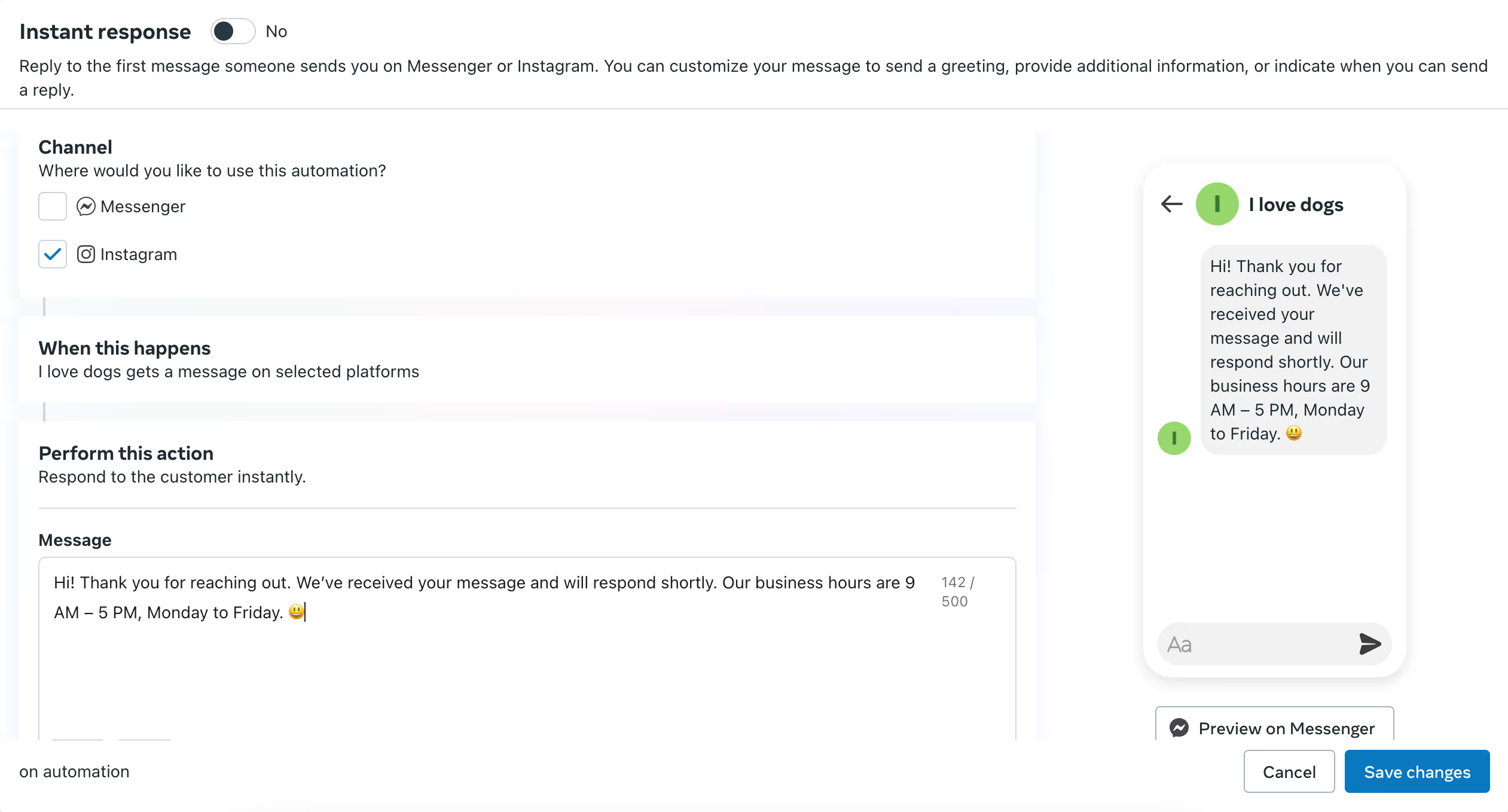
Select Instant Reply:
Choose Instagram:
1. In the "Platform" section, choose Instagram to ensure this auto-reply is sent to your Instagram DMs.
2. Write the Reply: write the message you want to send automatically to users when they first message you. For instance:
"Hi! Thank you for reaching out. We’ve received your message and will respond shortly. Our business hours are 9 AM – 5 PM, Monday to Friday."
3. You can use variables like the customer’s name or include emojis for a personalized touch. The message is limited to 500 characters.
4. Save: Once you’re satisfied with the message, click Save.
5. Activate Instant Reply: Make sure the toggle switch for Instant Replies is turned on so it will be active.
Away Messages allow you to notify users when you're not available to respond. You can also set up a schedule for this message.
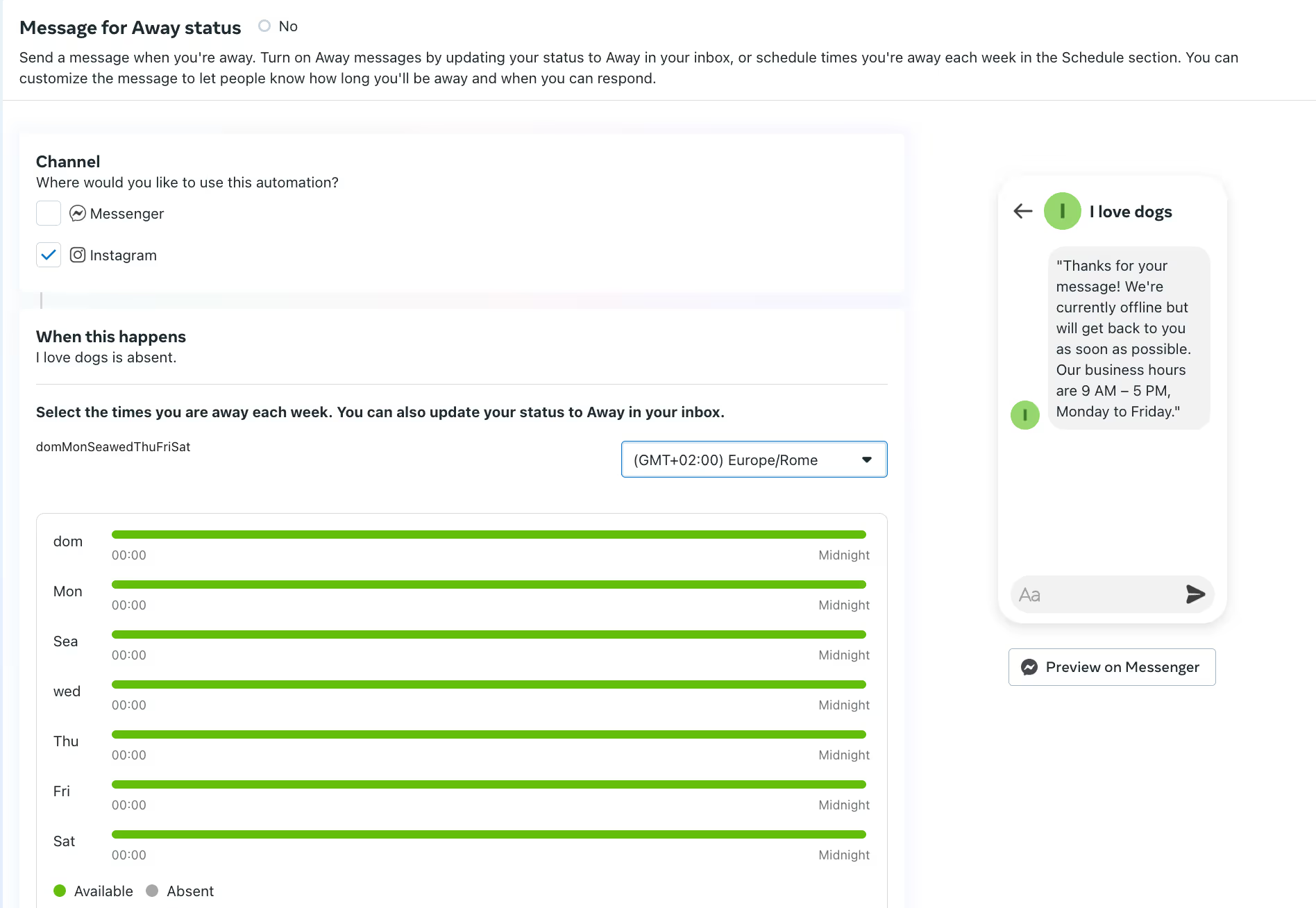
Select Away Message: From the Automated Responses section, click on Away Message.
Choose Instagram: Under platforms, select Instagram to ensure this auto reply applies to Instagram DMs.
Write the Away Message: Draft a message that informs customers of your offline status. For example:
"Thanks for your message! We're currently offline but will get back to you as soon as possible. Our business hours are 9 AM – 5 PM, Monday to Friday."
Set a Schedule: If you want to automatically send away messages during specific times, click Add Time and specify your business’s offline hours (e.g., after 5 PM or on weekends).
Save: Once you've composed the message and set the schedule, click Save.
Activate Away Message: Ensure that the toggle switch for Away Messages is turned on so that they’re sent automatically during your set offline hours.

Native Instagram auto replies have one significant limitation: they respond to any incoming DM with the same message. You cannot set different replies based on what someone actually wrote.
Keyword-triggered auto replies solve this. When a user sends a DM containing a specific word ("pricing", "book", "free", "help", "discount") they receive a reply tailored to that specific intent. Everyone else receives a default response.
Here is why this matters for conversion: someone who DMs "pricing" is a purchase-intent lead. They should receive your pricing information or a booking link immediately, not a generic acknowledgement. Someone who DMs "help" has a support question. They should receive your FAQ link — not the same message as the pricing enquirer.
Sending the same auto reply to everyone treats a hot lead and a casual browser identically. Keyword triggers let you respond to what someone actually wants at the moment they want it.
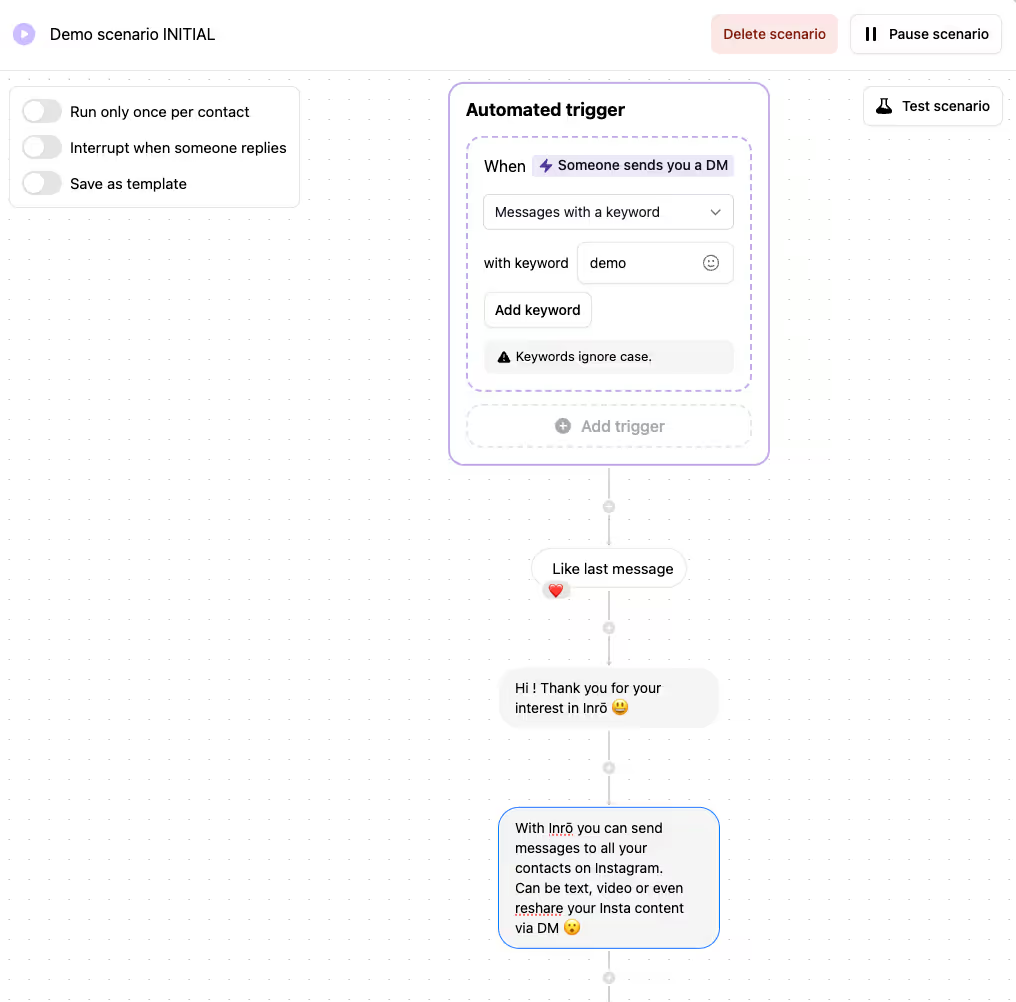
Setting up keyword triggers in Inro:
1. Go to Inrō's flow builder and select "DM keyword trigger."
2. Enter the keywords that activate the flow: you can add multiple keywords for the same response ("price", "pricing", "cost", "how much" can all trigger the same pricing reply) or use AI detected intent describing the intent of comments or incoming DMs
3. Write the specific reply for that keyword. Set up as many keyword flows as you need, there is no limit.
The result: every incoming DM is automatically routed to the most relevant response based on what the user actually said, without any manual sorting. Read our guide on how to set goals for instagram dm automation before building your first keyword flow.
Some third-party tools offer more advanced auto-reply features for Instagram. When choosing the best tool to use, be sure to select a reputable third-party tools that comply with Instagram's policies and that it is Meta-approved, like the Instagram Automation platform Inrō.
While Instagram’s basic messaging features are helpful, Inrō is a powerful tool that takes your DM management to the next level. Inrō offers more advanced features, including multi-level automation and tracking to help businesses streamline their communication.
With Inrō, you can set up multiple auto replies for different scenarios. For example, you can configure different responses for product inquiries, customer service questions, and frequently asked questions, all triggered by specific keywords in the user’s message which is aided by a special AI Agent.
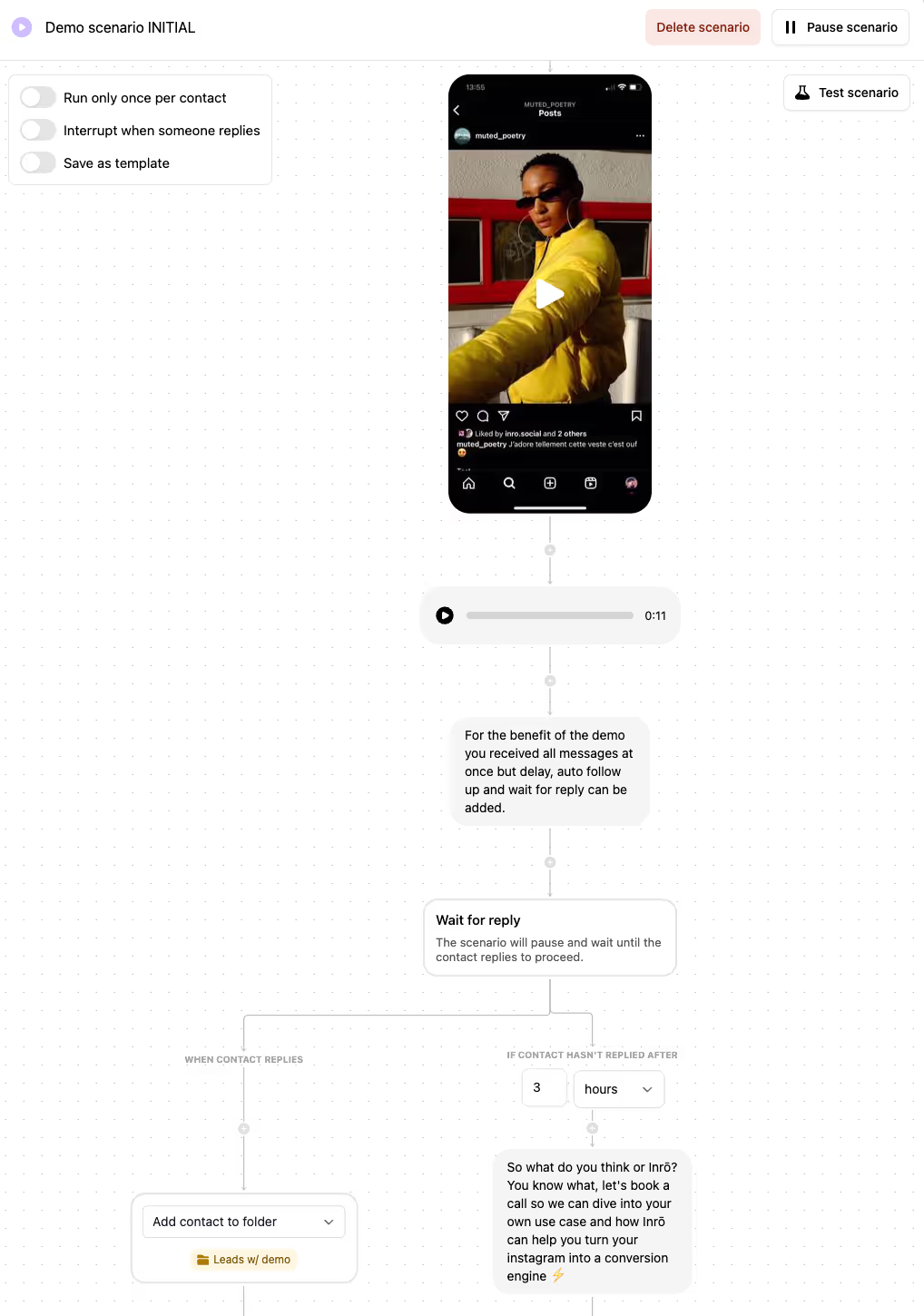
Inrō provides analytics on your DM interactions. You can track how often certain auto replies are used, the engagement they generate, and adjust your messaging strategy accordingly.
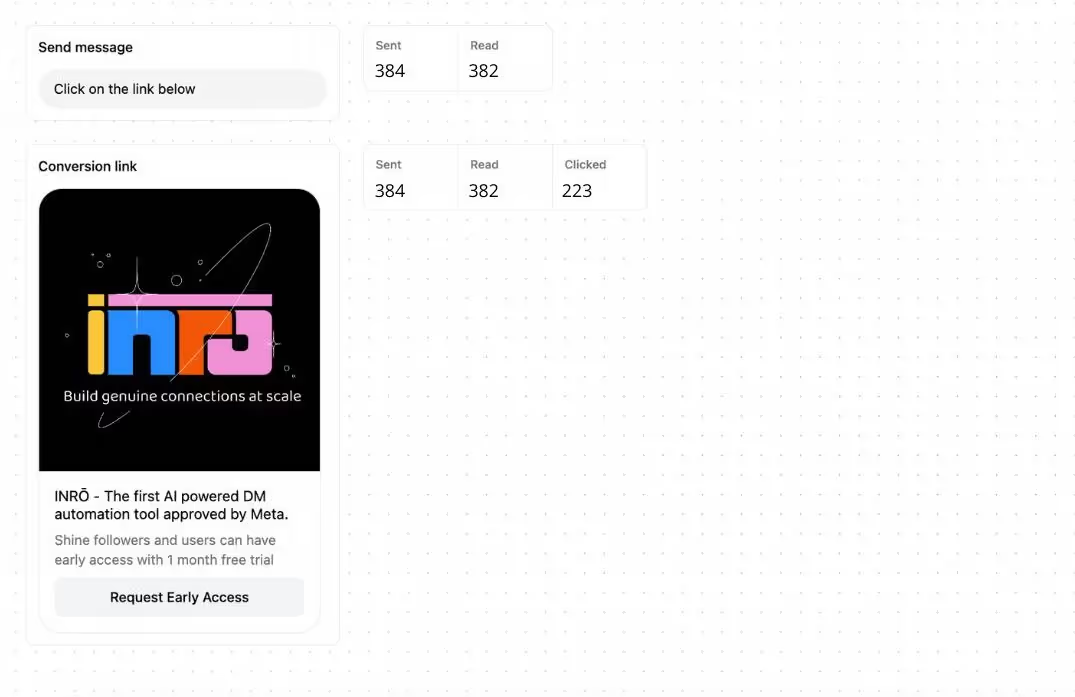
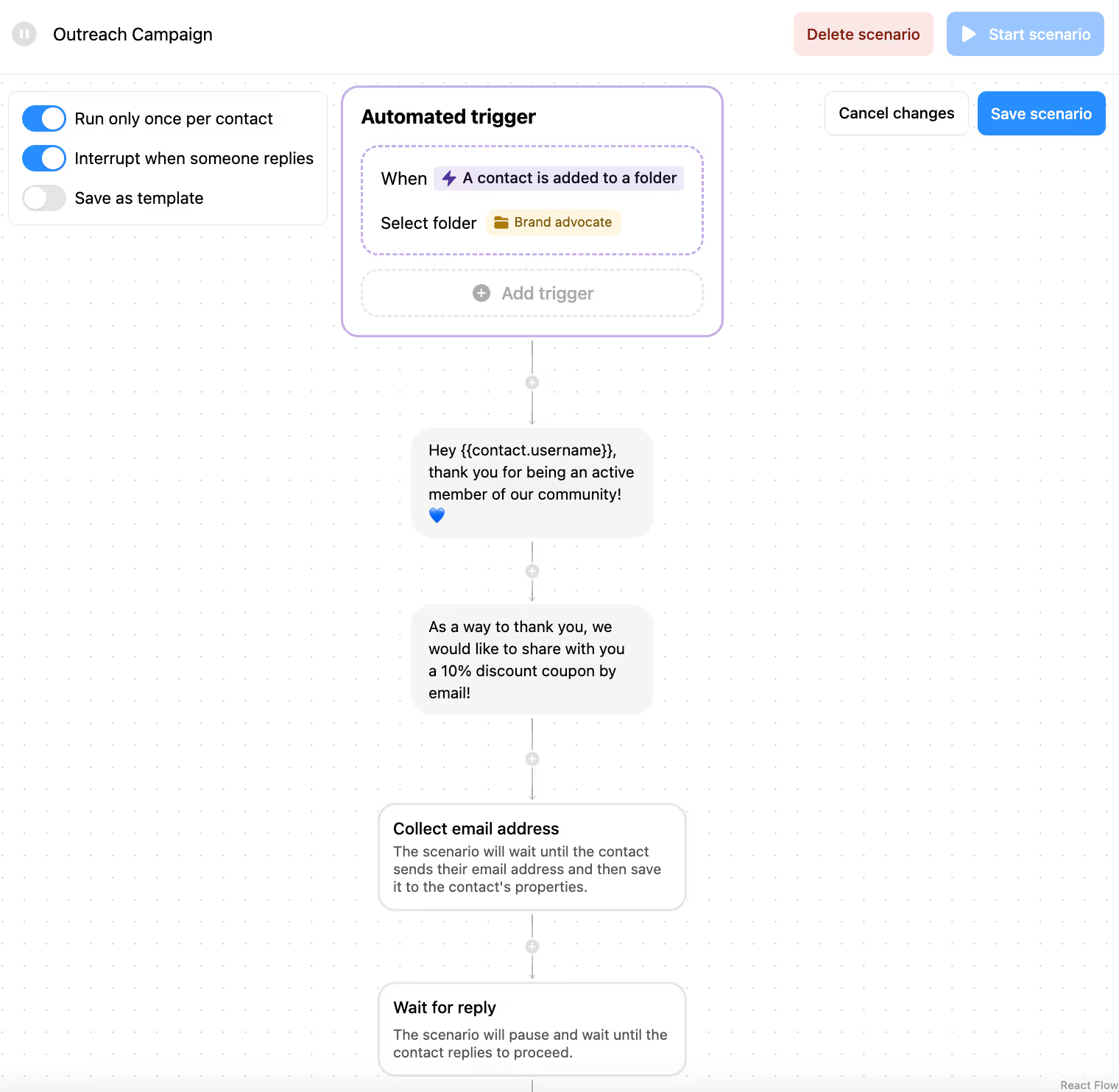
Inrō enables more personalized messaging by categorizing and segmenting contacts within its CRM. You can assign contacts to specific groups based on their behavior or interests. Then, through scenarios you set up, certain actions—like mentioning a product—trigger tailored responses. This ensures each contact receives relevant, customized information, enhancing the overall user experience.
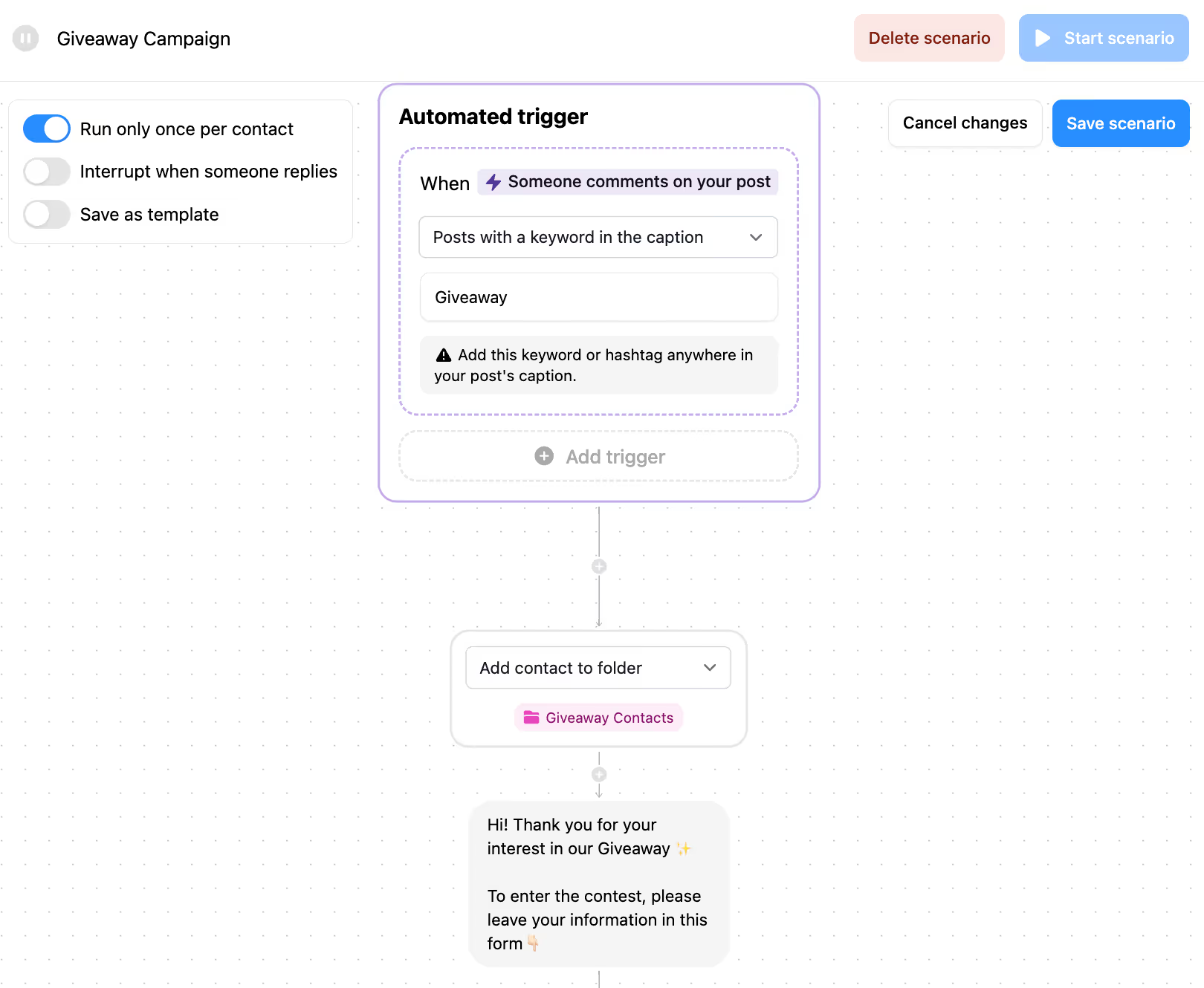
Inrō allows you to trigger auto replies from a user’s comment on your Instagram post. This is particularly useful to strengthen the relationship with your customer and anticipate their potential needs or request of information.
By using Inrō, you can streamline your communication even further, ensuring fast and personalized responses, while also tracking and analyzing your engagement for future improvements.
The gap is driven by relevance. A generic acknowledgement has nowhere to go — there is no clear next step and no personalisation. A keyword-triggered reply that delivers exactly what the user asked for creates a natural next step that converts.
If your keyword reply click rate is below 25%, the problem is almost always one of three things: the keyword does not match what users are actually typing, the reply does not deliver what the keyword implied, or the destination link is a poor match for the intent.
Here are 10 examples of effective Instagram auto reply messages you can use to enhance customer engagement:
Greeting Message: Welcome new followers or potential customers with a friendly greeting, encouraging them to engage.
Example: Hi there! Thanks for reaching out. How can we assist you today?
Business Hours: Inform customers of your operating hours to manage response expectations.
Example: Thank you for your message! Our business hours are Monday to Friday, 9 AM - 5 PM.
Away Message: Automatically notify customers when you're offline or on holiday, reassuring them you'll respond later.
Example: We’re currently offline but will respond during business hours. Thank you for your patience!
Order Confirmation: Instantly confirm a customer's order and provide relevant details.
Example: Thank you for your order! Your order number is #12345. We’ll notify you once it’s shipped.
Shipping Information: Keep customers informed by sending automated shipping updates, including tracking links.
Example: Your order has been shipped! Track your package here: [link].
FAQs: Automatically answer common questions by directing customers to your FAQ page.
Example: Here are answers to common questions: [FAQ link]. Let us know if you need more help!
Product Information: Share product details to help customers make informed purchasing decisions.
Example: Interested in our products? Find more details here: [product link].
Feedback Request: Encourage customers to share their opinions after a purchase to gather useful feedback.
Example: We’d love to hear your thoughts! Leave us a review here: [link].
Event Reminder: Send reminders for upcoming events to increase participation.
Example: Don’t forget! Our event is this Saturday at 5 PM. Join us here: [link].
Follow-Up Message: Re-engage with customers who haven't responded, showing your commitment to their satisfaction.
Example: Hi! Just checking in—did you receive our previous message? Let us know if we can assist further.
These templates can be tailored to suit your business needs, making communication faster and more personalized.
Auto replies can be highly effective in certain situations. Here are some examples of when they’re particularly useful:
There are certain cases where auto replies might not be appropriate:
Setting up auto replies on Instagram is one of the highest-return investments you can make in your Instagram communication strategy. Native setup through Meta Business Suite takes 5 minutes and immediately improves your response time and consistency. Adding keyword-triggered flows through Inrō takes another 10 minutes and dramatically improves relevance, conversion rate, and lead capture.
Start with the native setup if you have not already. Then add Inro once you hit the limitations of a single static reply for every incoming message.
Auto replies, keyword triggers, comment-to-DM flows and AI FAQ answers — set up once, running always.


Pre-set responses that automatically reply to DMs, improving response times, saving time, and ensuring consistent communication. Native Instagram supports one Instant Reply and one Away Message. Tools like Inrō support unlimited keyword-triggered automated messages.
Use Meta Business Suite to set up Away Messages during off-hours, informing customers you'll respond later. You can schedule Away Messages for specific hours and days so they activate and deactivate automatically.
For native auto replies, go to Meta Business Suite, open Automations, select the Instant Reply or Away Message, click Edit Message, update the text, and save. In Inrō, open the relevant flow, edit the message, and publish — changes apply to all future triggers immediately.
Instagram's native settings do not support auto replies to comments. To automatically reply to comments, use Inrō: set up a comment trigger, choose which posts to monitor, write the auto reply text, and activate. Inrō posts the reply automatically and optionally sends a DM to the commenter as well.
Instant Reply is a native Instagram feature in Meta Business Suite that sends an automatic message to anyone who DMs your account for the first time. It is limited to one static message and cannot be customised based on what the user wrote. For keyword-based instant replies, use Inrō.
Not natively — Instagram supports one Instant Reply and one Away Message only. To send different auto replies based on what users say, use Inrō, which supports unlimited keyword triggers each with its own unique reply.
Yes, with Inrō you can set up automated responses specifically triggered by Story replies. This is not available natively through Instagram's settings.
Natively, you can include the user's first name as a variable. With Inrō, you can personalise based on keywords, contact history, segmentation, and behaviour — making replies feel genuinely tailored rather than templated.
Try logging out and back in, clearing your app cache, or updating the app. If problems persist, visit Instagram's help centre or contact Meta Business Support directly.
Use Instagram's Message Requests feature to filter unknown senders, block or report accounts sending spam, and use Inrō to set up keyword filters that automatically handle or discard low-quality incoming messages.
Join automations strategies and Instagram Insights weekly
By entering your email address above and clicking Subcribe, you consent to receive marketing communications (such as newsletters, blog posts, event invitations and new product updates), and targeted advertising from Inrō from time to time. You can unsubscribe from our marketing emails at anytime by clinking on the "Unsubscribe" link at the bottom of our emails. For more information about how we process personal information and what right you have on this respect, please see our Privacy Policy.
Attract more leads, target them with DM marketing, and automate your interactions on Instagram!

.png)
.png)
.png)